Working with control & navigation in Strife
Here you'll find the basics of working with control and navigation in Strife.
Finding the content you are looking for
When in editing & preview mode, browse this page via the Play button in the top right corner of your screen to play the video.
Strife is built on a search and filtering based logic. Filters can be internal system data like “created by”, “published date”, “origin”, etc. but filters can also be created based on external data like user reactions and analytics data from third-party system. Strife comes with a set of standard filters and on top of that you’re able to create customized filters that suits your content model.
From the Strife content list you can:
Hit ctrl (or cmd for mac) + “f” to search for the page or content asset you are looking for
Hit the filter tab at the top of the content list page to narrow down content scope based on set criteria. The filtering function allows you to combine different sets of filters and apply logics for “and” and “or”, “match all criteria” or “match any criteria”.
Save a filter-based content selection as your own custom view. This is a useful shortcut if you have pages that you frequently monitor and/or work with.
Menu builder
When in editing & preview mode, browse this page via the Play button in the top right corner of your screen to play the video.
The website menu is built in the content type called “Global settings” found in the content listing, found under “Content” in the left hand bar. Menu entrances can be created at different levels (e.g. level 1, 2, 3).
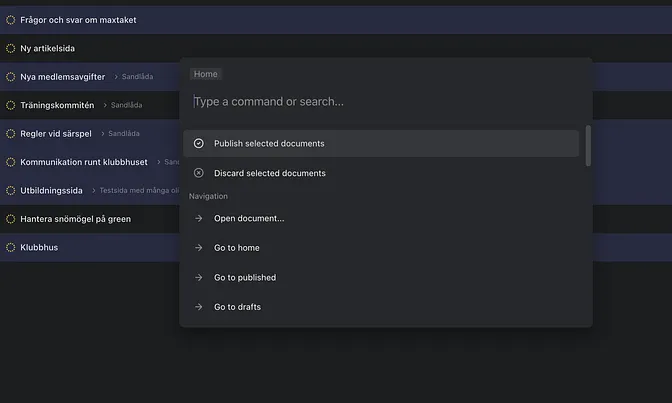
Using the Command menu
When in editing & preview mode, browse this page via the Play button in the top right corner of your screen to play the video.
The built in command menu offers a set of shortcuts to simplify and streamline user operations. From anywhere inside Strife, hit cmd+k (or ctrl+k if you’re on Windows) and the command menu will open. The menu is contextual and suggested operations are based on where you open the menu. The command menu can be used for batch operations such as manage several pages at one, toggle page subscription on/off, change theme and much more.